Communicating Early Phase Projects with Lumion 8

Communicating Early Phase Projects with Lumion 8

Create an artistic result that best represents your design concept.

During the initial stages of a building project, your client wants to see how the design concept is progressing. Nothing new there. What is new is how you can present your concept for client feedback. You have a solid sketch on paper and created some models using SketchUp (or similar application) but now you need a concept rendering. Not a photorealistic final, just a solid representation of your design with enough style and detail to communicate with the client. This is where Lumion 8 comes in. Equipped with a variety of tools, this increasingly popular application provides the capability to create artistic 3D renders which accurately depict your design. The result allows your client to develop a clear, overall understanding of your design before they offer feedback.

Styles enable conceptual renders in an instant

Lumion enables you to create images, videos, and 360 panoramas, but when it comes to conceptual renders, the coolest feature is the Styles preset button. With just a click, balanced combinations of effects can be instantly added to your design, eliminating the need to combine or further tweak effects. Simply choose the style you want and in a matter of seconds, you’ll have a professional image.

Most architects don’t want their drawings to look as if they were created using a one-size-fits-all template, so thankfully, the Lumion 8 Styles preset provides the tools you need to personalize your conceptual render. With the click and drag of your mouse, you can apply pre-configured effects which provide a genuine customized appearance. Styles iterations are also extremely easy. To reverse any Styles effects you’ve already applied to your design, simply double-click the handy undo/remove button located to the right of the effect. If you want to temporarily turn on/off an effect, click on the eye icon.

The Process

After you have imported a basic model into Lumion, you’ll have countless options to consider when creating a conceptual render. The best place to start is with Outlines and the best place to learn more about this effect is in this Lumion tutorial video. Once you have Outlines down, you can combine them with different effects and styles to achieve your desired result.

Although some architects may want to immediately leapfrog into photorealism, remember that we’re talking about conceptual renders here and photorealistic renders can take a lot of time. Photorealism is still a great way to present concept designs, but for a faster alternative, why not try a more artistic approach? Oil Painting simulates oil painting canvas brush strokes for an impressionistic feel. Pastel Sketch provides a softer, smoother look with quieter tones and colors, as well as blurred outlines. Watercolor simulates the look of impressionistic watercolor complete with color bleeds and when you combine this effect with Outlines, you’ll achieve that classic architectural concept look where your building design pops out of its colorful background. Sketch provides a true, hand-drawn look while also enabling you to easily remove the color if you want a black & white rendering. Manga simulates Japanese-style animation where colors pop and straight lines and model form are emphasized. Cartoon is just what the title implies, bringing your model into the animated world with soft colors and spatial distinction. Blueprint is also just as its name implies, presenting your design at its most basic.

The Lumion Styles preset (and Outlines effect), are ideal for creating visually striking conceptual renderings—especially in the early phase of a project where you want to put your best foot forward while still keeping stakeholder conversations focused on the form and function of your design.

Configuring the Ultimate Cinema 4D Workstation

Configuring the Ultimate Cinema 4D Workstation


CINEMA 4D, the popular 3D modelling and animation application, offers a wide variety of features accommodating various workflows, meaning a one-size-fits-all workstation configuration does not exist. With the help of lead 3D Modeller and Cinema 4D expert Shane Benson, we’ll look at the most common workflows so you can determine the right configuration for your C4D workflow.


GETTING TO THE CORE(S)

3D modelling within Cinema 4D is a single-threaded task or frequency bound (meaning that it predominantly uses only one core). Since the frequency of that core determines performance more than any other variable, a workstation with fewer cores (but higher frequency) is ideal. The process of building up meshes, extruding polygons, and manipulating vertices utilise only one CPU core. If you use C4D primarily for modelling, spending money on a dual CPU workstation with dozens of CPU cores is a waste of money. You’ll never use those additional cores. Since your workstation requires an operating system (OS), you’ll need two cores dedicated to the OS and the balance of cores reserved for content creation tasks. Because a workstation with a high-frequency CPU most benefits your 3D modelling workflow, the safely overclocked BOXX APEXX S3 C4D workstation is an excellent choice.


ANIMATION

Like 3D modelling, animation is a single-threaded task (or frequency bound), so if it’s your primary task, multiple CPU cores will (once again) be of little help. Workstations with higher CPU clock speeds perform much better at these tasks, so single socket APEXX S Class and APEXX T Class  workstations are ideal choices for your animation workflow. “Because the Cinema 4D workflow is mostly single-threaded, it makes sense to have fewer cores and higher clock speeds,” says Benson. “Any additional cores will be sitting idle while you are modelling, animating, or rigging. C4D only uses all available cores when rendering.” and


RENDERING

When choosing your CINEMA 4D workstation, consider that unlike 3D modelling and animation tasks, rendering your C4D assets is a highly multi-threaded process, therefore, the more CPU cores in your system (or systems) the better. C4D users have a variety of rendering engines to choose from. In addition to traditional CPU rendering, GPU-accelerated rendering is also a possibility and like CPU rendering, benefits from multiple cores.

GETTING GRAPHIC “On message boards, forums, and social media, C4D users often complain about the application being slow, and even after upgrading their machines, they see no improvement,” says Benson. “For example, they’ll discuss slow viewport speed, especially when using a very dense mesh or trying to cut holes in the mesh using a boolean. Their solution is to buy a bigger and faster GPU, however, this is incorrect because C4D does not use the GPU for boolean operations. Like the other modelling tools, it’s a single-threaded task, so throwing money at a bigger, faster GPU will not improve viewport performance.” Another misconception is that the key to improving C4D performance lies in a double precision GPU. “Many C4D users think a big, beefy GPU with double precision will accelerate performance,” says Benson, “but that’s not the case. C4D uses the CPU for computation.” Benson is quick to add, however, that the application does take advantage of double precision on the CPU. According to him, the limited availability of double precision (as well as reduced speed compared to single precision on GPUs) is one reason why MAXON is not making use of the GPU outside of OpenGL.

“Remember when Apple came out with the new trashcan style Mac Pro? Everyone was raging over it because it had two workstation-class GPUs,” says Benson. “Many C4D users were ready to jump ship from their PC workstation over to the new Mac Pro. The idea was that those dual GPUs were really going to make C4D come to life. What most of them didn’t know was that Cinema 4D does not require a dual GPU system. It will only use one GPU, (whichever one is driving the monitor). You can have four or five GPUs in a machine and C4D will still only use one. Third-party render engines like Octane Render and NVIDIA Iray have been ported and bridged over to C4D and these engines can use multiple GPUs. However, they will only be used for rendering when using those particular render engines. If a user does not have any of those GPU render engines, then having multiple GPUs with C4D would be useless. Many C4D users were very disappointed with the new Mac Pro, believing that its dual AMD FirePro graphics cards were really going to shine, not knowing C4D would only take advantage of one of them.”At large VFX or animation studios, this type of confusion can be an unfortunate byproduct of the relationship between the C4D user and IT personnel. A VFX artist may have to rely on an inadequate workstation which causes C4D to run slowly or the rendering and simulation processes to take hours. The user then pleads their case to IT which responds by purchasing the most fully-loaded system on the market. But it’s unnecessary since a mid-low-end NVIDIA Quadro card works fine in many workflows. You can opt for bigger cards, but since the majority of C4D video tasks are done on CPU and RAM, (in most scenarios) you can avoid the higher cost associated with top-of-the-line GPUs.“At one time, Cinema 4D was really favouring the gaming GPUs like the GeForce GTX cards,” Benson says. “The higher clock speeds on the GPU, along with the lower cost as compared to NVIDIA Quadro cards, made them a great choice for C4D users. Nowadays, both the GeForce and Quadro GPUs work fine with Cinema 4D, even though the GeForce drivers can sometimes be buggy. You have to either roll back to a previous driver or wait for NVIDIA to fix them.”


SSDs

Regarding the role of solid state drives (SSDs), Benson says that adding them to your C4D workstation won’t significantly improve performance within the application. “The only area that would see improvement would be faster times for launching the program and accelerated loading times when opening a scene large scene file,” he says. If your workflow requires frequent loading and saving of large scene files, you should definitely opt for fast SSDs. Aside from application-specific speed improvements, a fast SSD will make your C4D experience more responsive overall, with less perceived lag when multi-tasking.


THE IDEAL C4D WORKSTATION

“A desirable machine for Cinema 4D would be an overclocked Intel Core i7 with 24-32GB RAM, and either a GTX or Quadro graphics card,” says Benson. “I mention GTX because I know some people are on a budget. Also if you were to opt for the less expensive GeForce card, you could then spend more money on an additional machine with lots of cores specifically for rendering. This takes the load off of the workstation. In fact, the ideal setup for C4D users would be a single socket machine (like an Intel Core i7) for when you’re working. Then, when it comes time to render, the job could be offloaded to a machine with more cores, or multiple machines on a farm.” This is where the BOXX Workflow comes into play.


THE BOXX WORKFLOW

Benson’s description of the ideal C4D solution typifies The BOXX Workflow— freeing up your workstation for modelling and animation by offloading rendering to a dedicated rendering node. BOXX offers a number of dedicated rendering systems like the desk side renderPRO module or rack-mounted renderBOXX. Each system is easily scalable, allowing C4D users to build a render farm as their business grows and workload increases.


Happy Anniversary from One Game Changer to Another

Happy Anniversary from One Game Changer to Another


In the summer of 1993, Jurassic Park was welcomed by critics and audiences alike as the latest summer blockbuster (and cultural phenomenon) from director Steven Spielberg, the man inextricably linked to the term “blockbuster” as a result of his previous summer successes Jaws, Raiders of the Lost Ark, and E.T. the Extra-Terrestrial. Although pushing the boundaries of visual effects was key to each of these productions, the pre-release buzz surrounding Jurassic Park VFX was most deafening. This was no Godzilla picture. The promise was dinosaurs so realistic they would frighten audiences and appear as if they were actually sharing the screen with live actors, and thanks to CG wizards and the talented crew at George Lucas’ Industrial Light & Magic, Jurassic Park delivered.

Just three years following the film’s release, BOXX Technologies was born. Company co-founder and VP of Engineering Tim Lawrence recalls going to the movies and seeing films plagued by everything from damaged perforation and discolored prints, to poor audio and skips between reel changes. With the tremendous strides being made in VFX, animation, non-linear editing, and digital technology in general, he realized that the medium would one day morph into a completely digital format. Lawrence also knew that state-of-the-art computer hardware would be essential in facilitating this achievement.

Fast forward to today and BOXX is the leading innovator of high-performance computer workstations, rendering systems, and servers for VFX and animation studios, television networks, leading architecture and engineering firms, professional sports franchises, universities, and a host of other organizations. Our customers include names like Disney, PIXAR, HBO, FOX, NASA, (and many more) while BOXX solutions have been employed on countless blockbusters (including Jurassic World).

Noted concept designer Daniel Simon (TRON: Legacy, Captain America: The First Avenger, Oblivion) refers to BOXX systems as “industrial, like a real piece of machinery— elegant, heavy-duty machinery.” In other words, you don’t buy a BOXX to send emails or play video games. You buy it to go to work. And unlike commodity hardware manufacturers which build their systems overseas, BOXX solutions are designed, manufactured, and supported in the USA. Our performance specialists and tech support have expert knowledge regarding Autodesk, Adobe CC, Cinema 4D, DaVinci Resolve, V-Ray, Arnold, and other professional software applications, as well as the optimal hardware for your specific workflow. But don’t take our word for it. Consult independent product reviews or benchmark tests and you’ll discover that BOXX builds the fastest hardware solutions in the world.

Thanks for being a game changer, Jurassic Park and happy anniversary from all of us at BOXX. We hope to see you at our silver anniversary in 2021.

Is Augmented Reality an Option for Small and Medium-Sized Businesses?

Is Augmented Reality an Option for Small and Medium-Sized Businesses?

Recent trends in augmented reality (AR) have applications in marketing for businesses, but small- and medium-sized businesses may not realize that hiring a design team to develop an AR approach to marketing or securing a partnership within an already-built AR infrastructure is a real and useful possibility.

Partnerships

With Augmented Reality (AR), stories are being told, experiences are being had, and lives are being changed – all from behind a screen. AR consists of layering visuals and other digital information over what is currently being viewed on a digital device, allowing users to fully interact with a product or service without being fully immersed in an entirely new, virtual location.

The wildly popular go-to app for defining augmented reality, Pokemon Go, secured partnerships with large-scale companies such as Sprint and Starbucks during the height of its popularity, which has paved the way for smaller-sized companies to do the same.

Filters

It’s now easier and cheaper than ever to integrate AR into business practices. Using Adobe’s state-of-the-art design tools, AR filters can provide a highly unique, streamlined experience through posting on social media sites like Snapchat. Regular posting with AR enhancement can reel consumers into brand loyalty when carefully designed and integrated.

3D Models

Relevance is an ongoing challenge for companies who want to maintain or grow their profitability, even on the small scale. For construction and engineering firms, having to visualize an end-product using isolated 3D models is a long-held obstacle to streamlined planning.

Today’s most prolific 3D-modeling software, however, now integrates augmented reality options into the workflow. Small to medium firms can integrate augmented reality modeling into their processes to create a more thorough picture of what final products will look like.

Fitting Room

Small-to-medium sized clothing companies have the opportunity to build ecommerce structures that can support augmented reality. Through a sophisticated enough system, there is an opportunity for shoppers to use their tablet or smart phone cameras to align clothing with an on-screen image and virtually try on clothes, which could be just the boost in sales and customer retention needed to take a growing business to the next level.

Interior Design

Taking measurements of your living space before buying a couch is tedious, stressful, and sometimes confusing. Small-to-medium sized furniture design firms could benefit from the creation of apps that eliminate the need to measure for furniture.

It’s easier to integrate and design AR for a heightened user experience than one might think, and it’s more than just another simple marketing option for small-to-medium sized businesses – it’s success waiting to happen.


Unity Is Now Offering ProBuilder for Free

Unity Is Now Offering ProBuilder for Free | Get Details


Unity Technologies has purchased ProCore, maker of popular modeling/level design tool ProBuilder and additional tools ProGrids and Polybrush. All this software is now available to Unity subscribers, including those with personal plans. You’ll find ProBuilder built into the Unity 2018.1, while Polybrush and ProGrids are available for free in the Unity Asset Store.

ProCore founders Gabriel Williams and Karl Henkel are joining the team at Unity and will help create additional functionality for the entire Unity package. With ProBuilder now included in Unity, developers will be able to design, prototype, and play their test levels within the Unity Editor.

This added functionality is valued at $150/annually, which is the old price of ProCore’s bundle, including ProBuilder, ProGrids, Polybrush, and several deprecated tools. With the added functionality, Unity is now a better value than ever before and a necessity for any game developer.

What Does ProBuilder Do?

ProBuilder is a hybrid piece of software that incorporates 3D modeling technology and level design tools. It’s optimized to build simple geometry, but you can achieve detailed editing and UV unwrapping, based on your needs. With the added functionality of ProBuilder, you can prototype structures for your game quickly, create complex terrains, build weapons and vehicles, and much more.

Key features include:

  • Extrude and inset

  • Procedural shapes

  • In-scene UV controls

  • Indefinitely editable shapes

Many games have already been made using ProBuilder, including popular cult first-person shooter Superhot and various indie titles. With its ability to model trigger zones, navigation meshes and create custom collision geometry, ProBuilder is a fantastic tool for any game developer utilizing Unity.

What Do Polybrush and ProGrids Do?

Although ProBuilder is no doubt the most important part of Unity’s acquisition, the other tools now part of all subscriptions are useful for game development. You can incorporate Polybrush and ProGrids into your development workflow, utilizing their unique functionality.

Polybrush — This tool enables you to blend textures and colours, as well as sculpt meshes within the Unity editor. While it’s still in beta, you can use it to sprinkle objects throughout your virtual world with highly customizable brushes suited to your needs.

ProGrids — With ProGrids, you can add a visual and functional grid that snaps on all 3 of its axes. Utilizing the power of this tool, you’ll develop more quickly and with more quality, constructing with ease and precision. It’s fantastic for modular and tile-based environments but can improve workflow in any game type.

Leverage all these new in-editor tools to design and develop faster and more precisely. Try out these included items with your Unity subscription today.

Purchase a BOXX PC for Your Unity Needs

At BOXX, our products are powerful workhouses that support Unity’s software solutions for game developers. Choose the most advanced game developing software, now available with added functionality. Our systems can run the processor- and GPU-heavy applications you need from the Unity ecosystem.

VR Headsets That Are Changing the Market | BOXX

Virtual Reality Headsets That Are Changing the Market | BOXX

VR Headsets that Are Changing the Market

Virtual reality (VR) is the idea that you can explore new environments and play immersive games using the power of technology. It’s a concept that’s been theorized and dreamt about in science fiction for generations. And while virtual reality has been a nascent technology for decades, it hasn’t caught on in the past due to limited technology. However, in the last few years, VR technology has reached the point where we can support real-time motion tracking to make it seem like you’re in a virtual space that moves with you.

Now top VR headsets and companies are changing the market completely. Almost all of these products require a powerful PC, though there are some that can work with a smartphone.

With big-name companies like HTC, Sony, Oculus,

and Samsung throwing their hats into the ring, virtual reality is taking off in popularity. Here are some of the headsets we think are changing the market.

Oculus Rift

Oculus is the name that’s perhaps most synonymous with VR. While other headsets have recently outgunned Oculus’ technology, it was first to market and still retains a technical advantage over some competitors. While it doesn’t offer whole-room VR, it comes with Oculus’s motion controllers. The Rift is still a fantastic and affordable option for virtual reality.

Sony PlayStation VR

One of the best VR headsets on the market right now is Sony’s PlayStation VR, which offers a tethered VR experience that works with the company’s PS4 console. It works with proprietary titles made for the PS4 but also allows you to play any title as if you’re in front of a theater-size screen. The full package requires a PlayStation Camera and PlayStation Move Controller, which all bundles together.

HTC Vive with SteamVR

Surprising nearly everyone, HTC released its standalone HTC Vive headset, which can track your movement in a 10-ft cube around you. It needs to be hooked up to a powerful computer to work seamlessly and includes an advanced set of motion controllers. If you want whole-room VR, the HTC Vive combined with its SteamVR catalog of games is right for you.

Smartphone VR Headsets

One of the most exciting developments in VR technology is the ability to experience virtual reality with your smartphone. Using just your Android phone (for Google Daydream View) or Samsung phone (for Samsung Gear VR) allows you to enter a virtual reality world at a much lower price point. Both Google and Samsung offer controllers and quickly expanding content libraries. These smartphone headsets a good choice if you want to experience portable VR.

The Future of VR

Right now, virtual reality technology is still in its infancy. Sony, HTC, Oculus, and other companies are defining the market, and creating new games and worlds, but there’s so much more to be done. If you want to experience VR to its fullest, purchase a powerful workstation from BOXX. You’ll be able to run your VR headset and its included software at high speeds with any of our models.

Is your 3D Production pipeline bottlenecked?

Is your 3D Production pipeline bottlenecked?

Technological improvements in 3D software toolsets and computer hardware continue to enhance and advance the abilities of digital artists to create stunning images. Unfortunately, final rendering, which must be applied before 3D and visual effects elements can be seen in their full glory, remains a time-consuming and often daunting task. Many studios are ill-equipped to adequately address the rigorous technical requirements necessary to complete this final rendering stage.

YOUR TEAM OF ARTISTS IS UNABLE TO DELIVER THE REQUIRED QUALITY AND/OR QUANTITY WITHIN A SPECIFIC TIME FRAME Though digital artists do the best work possible with the resources at hand, even the most seasoned team or individual can struggle to keep up with project timelines and deliverables. When timelines become unmanageable, a substitution of quality for quantity is often one of the unfortunate workarounds—and adding more artists isn’t always the best solution. Unfortunately, many management teams simply aren’t aware of how much their artists’ ability to generate a quality final product can be hampered by inadequate or underpowered tools and technologies.

MISSED DEADLINES, LOST BIDS, FRUSTRATED ARTISTS, DISSATISFIED CUSTOMERS, AND MORE Inevitably, growing animation and design visualization studios begin to demonstrate signs of distress as the workload promised to customers approaches or exceeds in-house capacity. If not adequately addressed, this lack of capacity will begin to impact the studio in a number of undesirable ways—all of which are incompatible with company growth.

YOUR 3D RENDERING PIPELINE IS MOST LIKELY BOTTLENECKED There are many possible causes for bottlenecks in the pipeline, yet none of these affect the productivity of your studio as much as an inadequate capacity for rendering test shots and final images. Homegrown approaches to rendering, from relying upon your artists’ own workstations to use of an adhoc render farm to accomplish the task, can fail to provide the essential capacity, flexibility, and reliability necessary to accommodate your studio’s workload.

YOUR STUDIO NEEDS TO CONSIDER A DEDICATED RENDER FARM.

Boxx offers a range of rendering solutions including RenderPro 2 and RenderBOXX. Click the images to learn more.

Better Productivity through Improved Studio Efficiency A dedicated in-house rendering system increases the volume of finished work that can be delivered to customers. Dedicated render farms free your artists from unproductive hours or required overtime—a direct result of waiting for creations to render. When creative pipelines run smoothly and efficiently, deadlines become easier to meet, stress levels decrease, and your creative staff can enjoy normal working hours in a more relaxed atmosphere.

Increased Profitability Adding rendering capacity increases the ability of your company to keep pace with growing demand as your artists produce more work within a shorter period of time. Paying your artists to design, instead of paying them to wait for their work to render, maximizes the productivity of your existing human resources. As your business grows, you’ll be able to bid on more projects and larger projects, confident that your dedicated render farm will be instrumental in helping your creative teams deliver the promised product.

Improved Quality

By employing a dedicated renderBOXX or renderPRO, your studio workstations will no longer be tied up with rendering. Instead, they can be put back into service for the creation of projects. Allowing your artists more freedom to create, experiment, and refine their designs will result in more creative flexibility and higher-quality work.

Increased Customer Satisfaction When your creative team can deliver more options, produce better quality imagery, and provide faster turn-around times, the result is increased customer satisfaction which will, in turn, lead to repeat business and increased industry recognition.

#3D #3dproduction #rendering #pcworkstations #workstations #3dmodelling #rendwernode #renderfarm #renderboxx


How to Configure Your Revit Workstation for Optimum Performance

How to Configure Your Revit Workstation for Optimum Performance


As you may know, virtually all professional software applications are hindered in some way by performance bottlenecks. From inadequate hardware and legacy software code to poor end user software practices, these bottlenecks manifest themselves in a variety of forms.

As a leading innovator of professional, high-performance desktop workstations, Boxx makes a concerted effort to address your workflow’s software-specific bottlenecks related to computer hardware. In this article, we will outline key hardware components in your workflow and also explain which key features drive peak productivity.

High Frequency CPUs

One of Revit‘s biggest performance bottlenecks is the CPU – specifically, the frequency of the CPU in your system. Revit is referred to as “frequency bound,” meaning that the application’s performance is bound to the clock speed of the processor and not the number of CPU cores. The reason for this is that Revit, (like nearly all CAD applications), is single-threaded and in most instances, will only make use of a single core. This is often where we see a big difference between Xeon and i7/i9 processors. The clock speed is often more important than the amount of cores.

Intel Xeons are great for multi-threaded tasks like rendering and simulation. However, the more cores a CPU has, the lower the clock speed will be. There is often a misconception when it comes to CAD systems in that in order to qualify as a workstation, you need to have dual CPUs and that is simply not true. Instead you should be thinking about what is the best tool for the job. For CAD design, you need the highest frequency CPU.

How Much Memory?

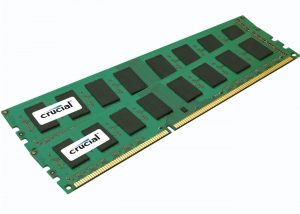
You need enough RAM so that you don’t have to swap or borrow from the hard drive, i.e., the virtual memory. If you are in the process of configuring RAM on your new workstation, take a good look at what you are currently using. Open a Revit model that is representative of your larger project files and monitor the memory usage for that file. If it is approaching your maximum, then you should go with more RAM for your new machine.

This will ensure accommodation for future design complexities with greater memory requirements over the life cycle of the machine.

When Revit opens a model, it is completely loaded into the computer’s memory. That is why Revit is so memory hungry. The amount of memory needed to run Revit smoothly is about 17 times the size of your project file. When the user executes a command, there is a lot of interaction between the memory and the processor.

Tasks like modifying level heights, structural analysis, energy simulations, and calculations of MEP systems will benefit from fast system memory. Also, be mindful of other memory-hungry applications you rely on in addition to Revit like 3ds Max, or standalone rendering engines like Lumion.

Getting Graphic

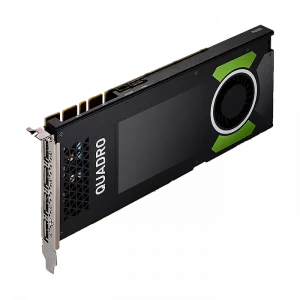
Much like the CPU component, many users are under the false impression that they need the most advanced professional Graphics card, like and Nvidia Quadro P5000 or P6000 for example, in order to accelerate their Revit viewport. however, high-end Quadro graphics cards like these are usually overkill for most 3D CAS design workflows. This may sound counterintuitive because if you’re experiencing poor interactivity within Revit’s viewports, it seems natural to blame choppy visual feedback on an underpowered graphics card. While Autodesk is constantly improving Revit to make more use of the graphics card, currently, the majority of viewport changes are handled by the processor.

The vast majority of Boxx customers opt for the Nvidia Quadro P2000 or P4000, as we recommend saving money on an expensive GPU and allocating that money for the fastest CPU your budget allows.


Local Storage

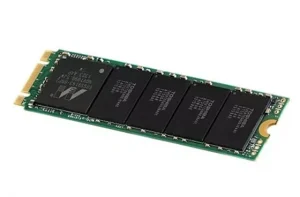
Another significant productivity killer can be the speed of your network coupled with the speed of your local storage. Revit models are getting more and more complex, leading to extremely large projects files of 10, 20, 30 gigabytes or even more. Many Revit users collaborate with each other on a central project file over a LAN. Fast local storage will benefit local changes that need to be synchronized to the central model, but you’ll also benefit from fast local storage when working on projects with linked files.

Linked files benefit from fast local storage because when you open a project with linked files, they are temporarily stored in your Windows Temp folder. But these linked files also need to travel the network. The network is the bottleneck here.

High Speed Network

Due to the need to transfer large project files over the network, you’ll want the fastest network you can afford. Gigabit Ethernet is very common these days and depending on the size of your project files, can be adequate for file-based work sharing on a local LAN. As project size and complexity increase, you will likely notice delays when synchronizing updates to and from a central project.

Upgrading your network to 10GbE can greatly reduce sync times for large files, but you will need to weigh the benefits vs. cost of deploying 10GbE network infrastructure which includes cables and switches.

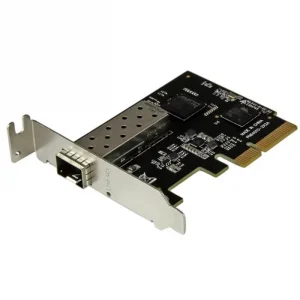
Another consideration is that most workstation motherboards currently do not have onboard 10Gb Ethernet Ports. Although a common solution is to use a PCIe 10Gb network card, you should carefully factor this option into your overall system configuration as the network card would occupy a PCIe slot, possibly limiting more advanced multi-GPU configurations if your workflow incorporates other GPU-accelerated applications in addition to Revit.

Choosing the Right Monitor

Choosing the right Monitor


What are the main points to keep in mind when looking for a Workstation Monitor?

IPS Vs. TN

These are the 2 types of panel technology that are most commonly found in monitors.

IPS – This panel has the most accurate colour representation. High-end monitors will also have an Adobe RGB colour profile built into them. IPS monitors are normally a bit more expensive. however the image quality is very obvious when using a high end monitor. At BoxxUK we tend to use 2 brands for high end monitors Dell (Pictured above, model U2715H) and Eizo. There a lot other brands out there that are very good in this area too.

TN – This panel has a tendency to represent colours in a manner that may make them look faded. They can also give the impression that there is a lot of back light bleeding. These two issues can be reduced by adjusting the setting of the monitor.

In this area we recommend Iiyama monitors as they have done a lot to limit the effect of the above-mentioned issues and they also have very reasonable prices.

8 bit vs 10 bit Colour

In the most basic way we can explain it,

8 bit colour = 16 million colours

16 bit colour = 1.02 – 1.07 billion colours (depending on monitor)

DisplayPort vs HDMI

Which connection is best? There are plenty of forums and opinions about which connection type is best. In reality, there is a very simple answer, does the connector

 type you are using allow you to get the best image from your monitor ? If the answer is “yes” then you are using the best connection type.

DisplyPort1.4 and HDMI 2.0 will work identically up to a resolution of 3840 x 2160 or 4K @ 60 Hz refresh rate.

Refresh Rate

With the variety of monitors on the market, there comes a variety of refresh rates ranging from 30Hz to 200Hz. So how are we supposed to know which one is good ?

Let us start at the beginning all the way at 30Hz, If you have a monitor connected and it is running at 30Hz refresh rate your image is likely to be a little blurry or have an out-of-focus look to it. This is normally the case all the way to about 45Hz.

To get a crystal clear image you want to be able to run your monitor at 60Hz.

60Hz is the golden number for a crisp clear image.

People may ask, if 60Hz is the golden number why do we have monitors that can do 200hz ? In the professional world of graphic design, a higher refresh rate than 60Hz would very rarely be used. It would only get used in scenarios where you have a lot happening on screen at a very fast pace. Higher refresh rates are more aimed at the gaming market, where people are playing games like Battlefield for example, where the screen is filled with people running, bombs flying, explosions, bullets flying, all happening at the same time. The image is clear however there is motion blur on the fast-moving items. refresh rates of 120Hz or higher combat this and reduce motion blur.

If like most designers you are making 3D models, retouching photos in Photoshop or even creating animations, a 60Hz refresh rate is where you want to be.

We hope this helps people choose monitors that suit their workflow.

The Boxx UK Team