How to Use Your Computer to Fight the Coronavirus

How to Use Your Computer to Fight the Coronavirus


Trade shows are being canceled. Sporting events are being suspended. Disney World is closed. We’re living in very strange times—but it’s not all bad news. Thanks to advancements in technology, the average person is better prepared to help solve the world’s biggest problems than ever before.

Enter Folding@home, a distributed computing project for disease research. Even though they’ve been around for twenty years, lately their popularity has soared, and for good reason. Their research touches many different areas; however, their main focus right now, as you may have guessed, is researching COVID-19.

To give you a basic idea of what they do, I’ll simply quote the project’s blog: “[they’re] simulating the dynamics of COVID-19 proteins to hunt for new therapeutic opportunities.”*

Viruses are like tiny machines, but it’s not yet clear exactly how these particular machines work. By running lots (and lots) of simulations, which require lots (and lots) of computing power, we can gain insights into which drug treatments are most effective in order to save lives and curb the spread of the virus, and eventually create a vaccine.

By signing up for the project (which is free), you allow them to utilize some of your computer’s resources to perform biomedical research. To give you an idea of what that work looks like, this video shows a protein simulation in action. And yes, they’re always that wiggly.

In the midst of all the confusion, misinformation, and everyone buying all the toilet paper, it’s been refreshing to see some companies doing what they can to help. For instance, recently our friends over at NVIDIA called on all PC enthusiasts via Reddit and Twitter to sign up for Folding@home. They received an overwhelming response, and for a bit, so did their servers. This is exciting news, as NVIDIA GPUs are very good at the sort of computing tasks that several of Folding@home’s coronavirus-related projects rely on.

Speaking of, if you already happen to own a BOXX system, particularly one of our 4-GPU or 8-GPU RAXX models, there’s a chance you could have a substantial impact on that research in-between, say, your daily rendering jobs or deep neural network training. However, if you wanted the ultimate simulation workstation, you’d need our massive 16-GPU system, the RAXX P6G Jupiter, so named because it’s packed with so many video cards that it practically creates its own gravitational field.**

The RAXX P6G Jupiter, seen here with enough GPUs to power a tiny island nation.

To do our part, BOXX is currently using one of our P6G Jupiter systems in the lab to fold some proteins as well (Team #244790). But the great thing about Folding@home is that you don’t need a massive 16-GPU workstation to make a difference. Any computer with an internet connection can help. It’s all about the cumulative effect of individuals, and not the work of any one system. However, the more powerful your computer, the more you can contribute.

In addition to being a worthy cause, Folding@home is very flexible in terms of its usability. For example, you can easily adjust the type and amount of resources it uses while it runs in the background. You can also tell it to only start when the PC is idle, or you can simply pause it as needed. You can also join teams, track your contributions, and even compare your participation to others.

It’s also worth noting that Folding@home isn’t the only game in town. There are many distributed computing projects all around the world that support all kinds of research, such as astrophysics, cryptography, mathematics, robotics, and seismology.*** Lastly, it’s important to remember that, due to the nature of how these projects work, contributing may increase your electricity bill to some degree.

So, do you have an old computer collecting dust that you can put to work? Or do you want to let your current workstation do some sciencing on the side? (Alternatively, you can use an Android phone as well.) If you’re interested, you can sign up here.

BOXX is a leading manufacturer of purpose-built workstations that accelerate productivity for many professional workloads in multiple industries, including manufacturing & product design, media & entertainment, and data science. To learn more, visit our website or consult with a BOXX performance specialist today.

__________________________________________________________________

* Source.

** May not be 100% scientifically accurate.

*** List of distributed computing projects (Wikipedia).

Testing V-Ray GPU Rendering with NVIDIA NVLink

Testing V-Ray GPU Rendering with NVIDIA NVLink


As GPU technology has advanced over the years, GPU rendering has become more advanced and popular due to its speed advantage over CPUs in visual rendering. In addition, a GPU rendering workstation is much more flexible and scalable than a CPU workstation, with many being able to fit two, four, or even eight GPUs. The main drawback to GPU rendering is the limited VRAM for each GPU. In the past, even the top GPUs had only 24 or 32GB of VRAM, compared to CPU rendering workstations that could easily pack 128GB or more of RAM.

However, with last year’s launch of the RTX GPUs and the introduction of NVLink to the Quadro, Titan, and GeForce lines, it is possible to have nearly 96 GB of VRAM available for rendering when using two Quadro RTX 8000s due to the memory pooling capabilities of NVLink. Even if you don’t need a full 96 GB of VRAM, NVLink has now made it extremely affordable to get 22 GB of VRAM with two RTX 2080 Tis — at a third of the price of the past generation 24 GB option and offers over twice the performance. With these recent advancements, GPU rendering is becoming a more and more viable solution, retaining its speed advantage over CPU rendering while increasing the capacity for complex professional renders.

To better understand the functionality of NVLink in V-Ray, we tested four of the top NVIDIA GPUs in the APEXX Enigma S3, a BOXX workstation designed specifically for dual-card GPU rendering. This Enigma S3 is powered by an overclocked Intel i9-9900k, a perfect combination of clock speed and thread count excellent for driving GPU rendering and viewport manipulation that can also be used for hybrid rendering if you want an extra speed boost.

To ensure that the I/O and memory of the system were not causing any bottlenecks, each configuration was tested with 64GB of Samsung DDR4 at 2666 MHz and a Samsung 970 Pro 512 GB NVMe SSD.

Because the 9th Gen Intel processors used in this workstation only have 16 PCIe lanes to communicate with PCIe devices, normally if you were to use two GPUs the 16 lanes would be split into two 8x connections for each of the GPUs. However, the Enigma S3 is designed for multi-GPU setups so the motherboard includes a PCIe switch that can provide each of the GPUs with up to the full 16 PCIe lanes to communicate with the CPU. Alternatively, if you want to add a less powerful third graphics card to edit scenes in the viewport and run your monitors while you use the other two GPUs for rendering, the PCIe switch will keep the rendering GPUs at 16x and 8x. Meanwhile, the viewport GPU can be at 8x, compared to a non-PCIe switch setup where the cards would be at 8x/4x/4x

In our first test, we ran the V-Ray Next 4.10.05 GPU benchmark on both the single and dual card setups to get a good idea of both the scaling and relative speed of the cards. In the tests, we ran only the GPU segment of the test using one or two GPUs (not hybrid rendering with the i9-9900k). It is also important to note that for this test, NVLink was off.

For a more memory-intensive render, Chaos Group provided us with the City GPU scene in Autodesk 3ds Max. When rendering the scene at 4K on a single card, we saw 29GB of VRAM usage, meaning that the 2080 Ti, Titan RTX, and RTX 6000 were unable to render the scene without NVLink. However, once the NVLink bridge was installed and activated, the Titan RTX and RTX 6000 graphics cards could complete the render as well as the RTX 8000 GPU.

Moving to NVLink, we did see around a 12% performance loss, but this still puts the GPUs far ahead of their CPU competitors and is well worth the nearly doubled VRAM. In addition, if NVLink is not needed (for example, for the RTX 8000 in this scene), it can be easily toggled in the NVIDIA Control Panel by selecting either “Maximize 3D performance” or “Disable SLI” in the SLI Configuration tab.

The NVIDIA Quadro RTX 8000, Quadro RTX 6000, and Titan RTX are also very close in the City GPU benchmark although the Quadros do come out slightly ahead of the Titan both with and without NVLink. This could be because of the dual fan design of the Titan cooler, which is less optimal for multi-GPU setups compared to the blower style Quadros, or the marginally slower base clock speed (although the boost clock speed is consistent for all three). In addition, the larger memory size of the RTX 8000 likely allows V-Ray to use more memory which can be more optimal for speed.

For dual card rendering in the Enigma S3, I recommend the NVIDIA GeForce RTX 2080 Ti, the Titan RTX, or the Quadro RTX 8000, based on how much VRAM you require. If you need an even faster four or eight GPU setup like the BOXX APEXX S4, APEXX X4, APEXX T4, APEXX W8R, or APEXX D8R, I would advise going with the Quadro RTX 6000 GPUs instead of the Titan RTX GPUs for a configuration that has around 48GB of VRAM. Unfortunately, while all the other cards mentioned may be purchased with blower coolers for multi-GPU setups, only the Titan comes with the Founders Edition dual-fan cooler that overheats when placed adjacent to other cards.

Looking to the future, GPU rendering is extremely promising. The new NVIDIA Turing RTX graphics cards already save valuable time over the previous Pascal generation, and this is before the new RT cores are utilized by V-Ray (although their Tensor Cores are used in the NVIDIA OptiX AI Denoiser implemented in V-Ray Next). According to Chaos Group, there is an internal build of V-Ray GPU in the works that offers a speed boost of 47-78% for RTX cards, with more performance gains expected in the coming months of development.* In fact, according to preliminary testing done by Chaos Group, the 2080 Ti with RT core support will more than double the performance of the 1080 Ti. Additionally, Chaos Group’s work on out-of-core geometry for the GPU engine will further reduce VRAM usage, making GPU rendering both more accessible and more efficient for geometrically complex scenes. As GPU and GPU rendering technology progresses, I expect GPU rendering will become even more widespread and eventually take over as the main production render in most workflows.

* https://www.chaosgroup.com/blog/profiling-the-nvidia-rtx-cards#


BOXX Workstations: An Exercise in Decision-Making

BOXX Workstations: An Exercise in Decision-Making


There are a number of things creative professionals should consider when choosing a new BOXX workstation. Among the most important is knowing you’re getting your money’s worth, both in the short-term and the long-term. To do that, you need to know exactly which hardware is best for the software you use and to do that, you need to look at benchmarks. Today, I’ll be going through one workflow example and decide which BOXX system is the best fit.

Let’s say your current system could use an upgrade, and your workflow involves creating models in Revit, followed by exporting those models to Blender for rendering.

Next, let’s decide on three goals for your new workstation:

  1. Speed up rendering in Blender.

  2. Speed up model creation in Revit.

  3. Find the model with the best price-performance ratio.

Before we get to the benchmarks, it’s good to point out that I chose models that all use the same chassis in an effort to normalize the price comparisons. However, within each class, you often have a couple chassis options depending on things like how many hard drives or GPUs you want. For example, the APEXX X3 offers up to two GPUs at full bandwidth and up to two 3.5” hard drives, while the APEXX X4—which uses the same processor—offers up to four 3.5” hard drives and up to four GPUs at full bandwidth.* Additionally, know that there is some overlap in the CPU options for some models.**

Blender, Classroom Benchmark

Blender is a tile-based renderer, which means it subdivides rendering jobs into many discrete sections that are completed in parallel. The more CPU cores you have, the more sections can be completed simultaneously, and the faster you can complete a render job. Knowing that it scales much like you’d expect, with higher-core processors showing progressively shorter render times.

I’ve also included an approximate starting price for the CPU configurations shown. It’s important to note that prices can and often do fluctuate, especially when customizing a system (e.g., adding hard drives, more RAM, video cards, etc.). The numbers used here are approximations and intended only to be used as a means for comparison.

Assuming you plan on rendering in Blender on the CPU, it makes sense to choose a model with a high core count. Let’s say your current rig is a few generations behind and takes about 25 minutes to finish this benchmark. The 16-core APEXX A3 would provide a three-fold decrease in render times. This one seems like the sweet spot, as the cost goes up substantially after that point, and you still get a large boost in performance. However, more expensive models like the APEXX X3 and T3 have extra benefits as well, such as higher memory capacity (256GB vs 128GB) and additional PCIe lanes. More memory would help larger scenes finish faster and facilitate multitasking, while extra PCIe lanes can be important if you, say, use a plugin that scales with multiple GPUs, like V-Ray.

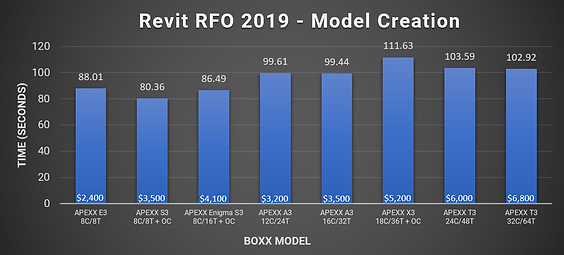
Revit, Model Creation Benchmark

Let’s move on to Goal #2. Most tasks in Revit are lightly threaded, and each step of model creation is calculated sequentially, which means having lots of CPU cores doesn’t help. Instead, a higher per-core frequency is needed to speed things up (this holds true for exporting models as well), which is typically found in CPUs with fewer cores.

Overall, with BOXX workstations, there is much less variability across models, with the APEXX S3 and E3 systems scoring better. The professionally overclocked APEXX S3, with its eight cores running at a stable 5.1 GHz, performed the best. And again we see the APEXX A3 models sit in the middle of the scores. However, this time the 12-core version seems more promising than it did in Blender, as it is a bit less expensive and scored almost identically to the 16-core variant. But considering the fact that speeding up model creation is a secondary goal, the ideal choice here once again seems to be the 16-core APEXX A3.

The Price–Performance Ratio:

Let’s say you’re looking to spend somewhere between $3-5K on a new system, which is about average for a premium desktop workstation these days. The 16-core APEXX A3 scored well in lightly-threaded and multi-threaded workloads, which is a must for the workflow presented, and it sits comfortably inside that price range. While it isn’t the absolute best in either category, it’s certainly no slouch and is attractively priced compared to other models that provide similar performance in either Revit or Blender.

The T-Class models are also an option, as their performance in Revit wasn’t terrible by comparison; however, they are a bit pricier, so you’d need to figure out if the extra features and time saved justifies the cost.*** If you need more than 128GB of RAM, or spending more now is going to allow you to take on a couple more projects a month, you may be able to justify the added cost rather quickly.

Final Thoughts

Based on the criteria presented—with accelerated rendering times being most important (and assuming you don’t require the features of more expensive models)—I’d call the 16-core APEXX A3 the best fit. It’s also a good choice in terms of future upgrade prospects, as it is currently compatible with the fastest PCIe Gen 4 M.2 SSDs on the market, and will be ideal for future PCIe Gen 4 video cards.**** Those Gen 4 devices only need half as many lanes to provide the same data throughput as Gen 3,***** which means that even with the limited number of PCIe lanes on the APEXX A3, you’ll be less limited than if you got a model with a similar amount of lanes on another CPU platform.

BOXX is committed to finding the BOXX workstation that best matches your workflow. We also use premium components that are built to last and accelerate your productivity for all sorts of applications across several industries. If you’d like to learn more, give us a call +44 (0) 1256 378 044, or consult with a BOXX performance specialist today.

** For example, the APEXX S3 and APEXX Enigma S3 can both be configured with either an 8C/8T or 8C/16T CPU.

*** The APEXX T3 also can be configured with a 64-core CPU, however, the cost of that configuration fell outside the bounds of this exercise.

**** PCIe Gen 3 devices will work with Gen 4 motherboards but will only provide Gen 3-level performance.

***** PCIe Gen 3 max throughput is ~1GB per lane, while PCIe Gen 4 is ~2GB per lane.

Testing the New SOLIDWORKS Engine

Testing the New SOLIDWORKS Engine

SOLIDWORKS is currently beta testing a new engine. Historically, CAD application performance has relied entirely on the speed of a handful of high-frequency cores. However, like lots of professional software these days, SOLIDWORKS is being reworked to take better advantage of the latest GPUs. Therefore, now is a good time to compare performance of CPUs and GPUs across the current and upcoming engine, and demonstrate how a BOXX workstation is the best choice for your workflow.

These benchmarks provide an accurate representation of the performance comparisons between components by testing common tasks in SOLIDWORKS 2019 (Service Pack 2). They also give users a good idea of what performance will look like for three BOXX models designed specifically for running CAD software: the APEXX E2, APEXX S3, and APEXX X3.

This post only features benchmark highlights. For an in-depth look at our data and methodology, click the icon below:

READ THE WITE PAPER

* Lightly threaded applications will run 1-2 cores at the higher speed and heavily threaded apps will run all engaged cores at the lower speed.

Results – CPU

Load and Rebuild Times
The overclocked 9700K and 9900K performed virtually identically in the new engine and gave the best viewport performance out of all the configurations. This is not surprising, as SOLIDWORKS is designed to function best on a small number of cores at high frequency. In general, times did not change much for any of the CPUs tested across current and new engines, however, load times were slightly higher for the overclocked 9980XE in the current engine, while they remained much the same in the new.
FPS
Frames per second evened out noticeably for all CPUs in the beta engine, while the current engine maintained an extremely low fps (<4 fps) with the 9980XE (stock and overclocked). This is of course due to the heavily CPU-bound nature of the current engine.
Render Times
As expected, render times did not change much between the current and new engine when only comparing processors. Across both engines, the 9980XE (stock and overclocked) performed best, achieving >2x faster render times compared to the 9700K.

Results – GPU

FPS
We saw no improvement in fps in the current engine among any of the GPUs. They all performed basically the same, achieving around 5 fps. Of course, we chose the same settings for the current engine and the beta to show the drastic difference in performance between the two versions. Realistically, if using the current engine, the user would trade some visual fidelity for a more workable model and get around 20–30 fps.
Comparing the older NVIDIA Quadro P4000 (Pascal architecture) and the newer Quadro RTX 4000 (Turing architecture) in the beta engine, we saw an increase of 38 fps with the RTX card at 1080p, as well as an increase of 23 fps at 2160p. The highest fps recorded was the RTX 6000 (163 fps at 1080p). The “worst” performing card was the P4000 with 48 fps at 1080p, which would still provide a very smooth and workable experience.
Load, Rebuild, and Rotation Times
The biggest takeaway between the two engines was the reduction in rotation time, going from around three minutes in the current engine to ranging between 5–20 seconds in the beta engine.

Recommendations

Regarding upcoming SOLIDWORKS releases, a single Quadro RTX 4000, P4000 or even P2000 should be sufficient for most users’ basic needs. That said, the Quadro RTX 4000 falls right in the sweet spot when considering both price and performance. However, if your workflow includes extremely complex models, multiple displays, or you work in UHD (4K/8K), a multi-GPU setup with Quadro RTX cards would be beneficial.
Regardless of the processor, using a Quadro RTX 4000 (or higher) would also be beneficial if users want to utilize multiple monitors at once, and/or drive multiple CAD software instances at once. Of all the models we compared, the APEXX X3 has the highest GPU power budget (1,000 watts) to allow for the most high-end video cards in a single system.[*]
If you work with complex models at 2160p and want to maintain a comfortable 60 fps, an Intel® Core™ i7-9700K (non-overclocked) combined with an NVIDIA Quadro RTX 4000 is a good solution. That can be found in the APEXX E2. However, it’s also worth noting that the percent advantages of professionally overclocked processors (5–10%) translate relatively linearly to more time-consuming operations that users may be dealing with. For example, if you want to add the fastest load and rebuild times, you could upgrade to the overclocked APEXX S3, which offers more room for hard drives.
If you want a well-rounded system that provides fantastic load/rebuild times on top of blazing fast rendering, you can’t go wrong with the APEXX X3. According to our tests, adding a Quadro RTX card (or two) to the mix will yield excellent results in the upcoming engine. In that case, you’ll have a handful of high-frequency cores to build your models with, then plenty of cores to lean on when rendering. That’s why they call it the multi-tasker.
__________________________________________________________________
[*] Read more about GPU power budgets here.